
1. Open a Web Browser: Go to https://uscloud.patronbase.com/
2. Bravo Gateway Login: Enter your Bravo Gateway username & password.
Note: this is different from your BravoBase APP username & password. If you don’t have this information, contact our support team. 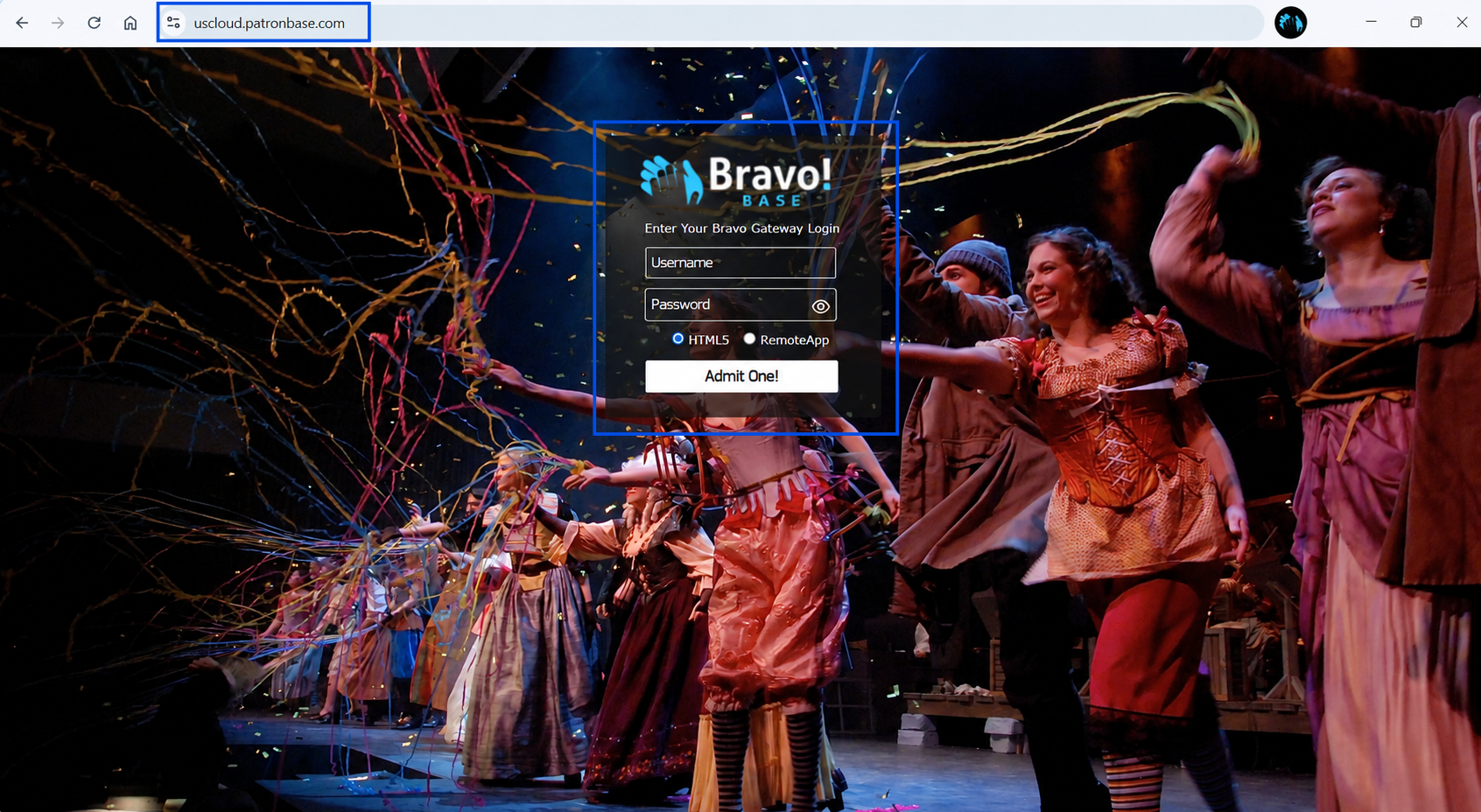
3. Click on the “Admit One!” button to login to the BravoBase App Gateway
4. Select an App Module: Once logged in, click your desired app module icons such as Box Office: © 2023 Bravo Arts Solutions. Confidential & All Rights Reserved. 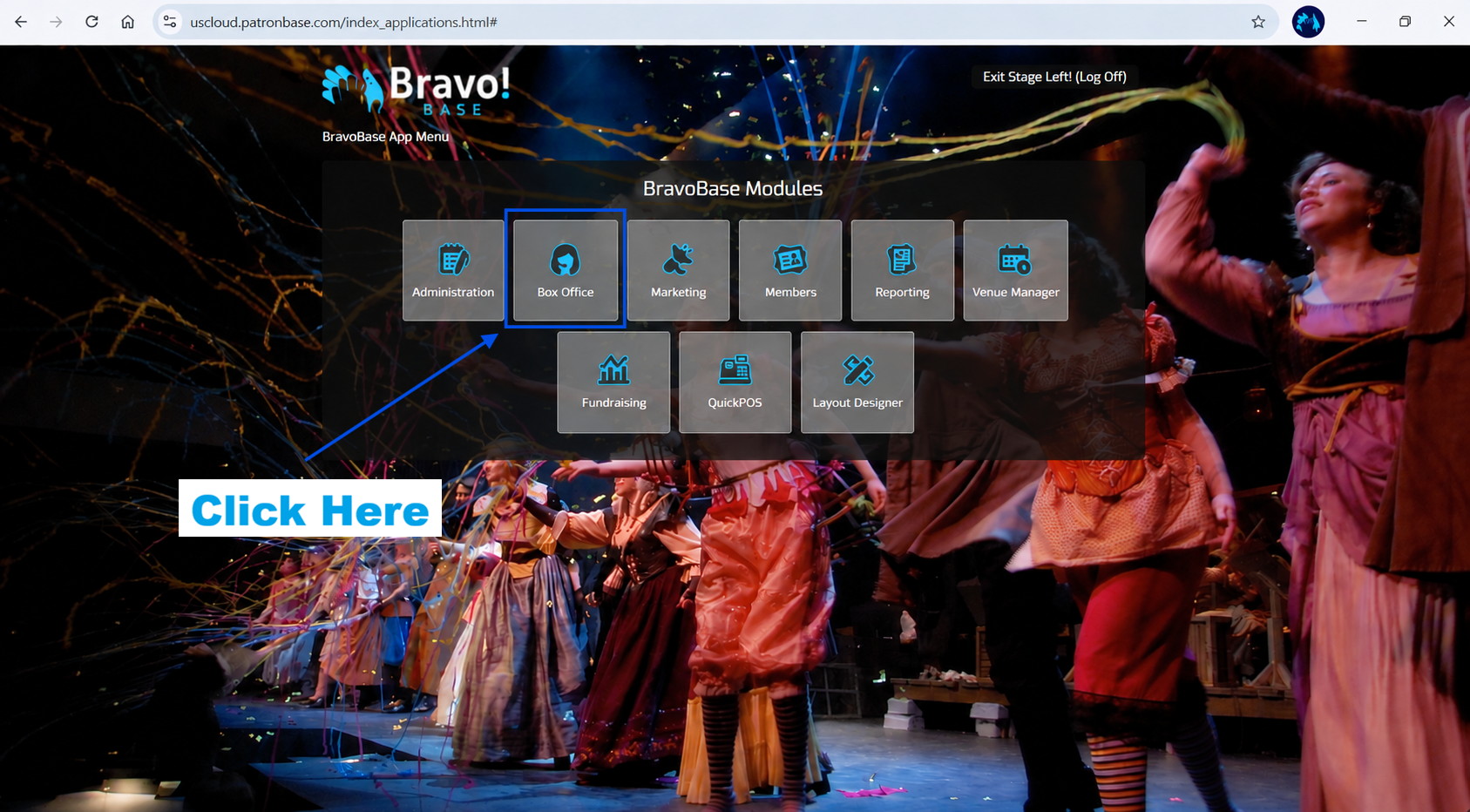
5. Module Login: A new browser tab or window will open and display the App login window. Enter your BravoBase APP login username & password: Note: this is different from your Bravo Gateway username & password. If you don’t have your login credentials, contact our support team. 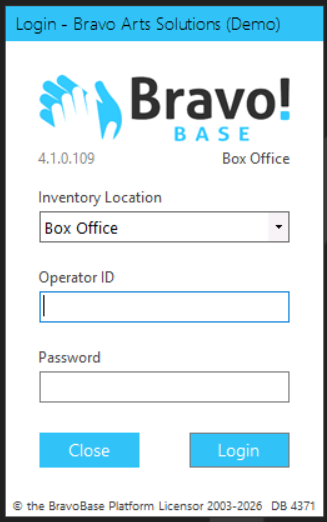
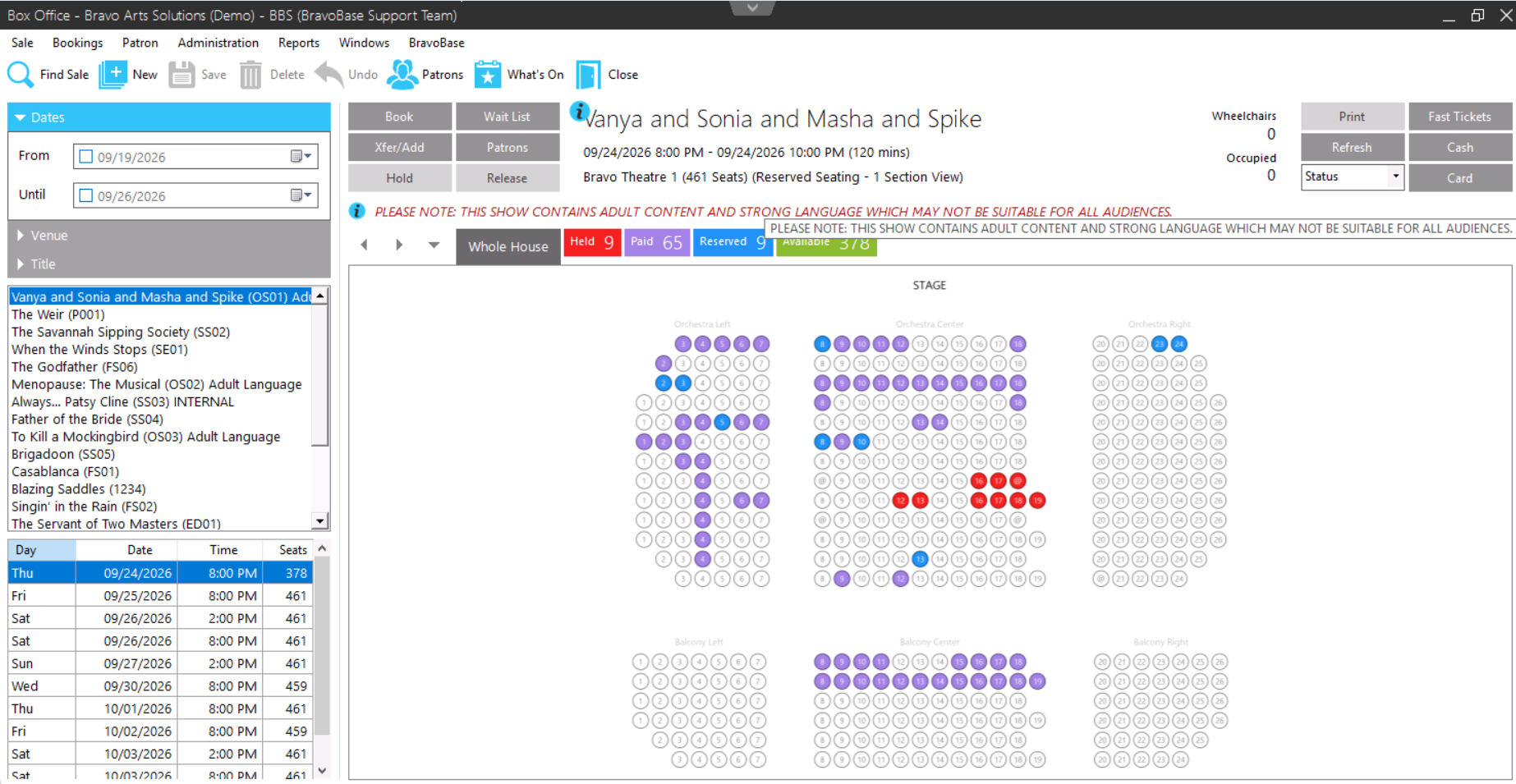
6. You will now be on the modules home screen.
Example: in the Box Office module you will see the performance graphic screen
Opening Multiple Modules
You can open multiple modules by returning to the Gateway Module screen seen in step 4 and clicking a new module icon. Each opens in a new web browser tab or window.
Enjoy using BravoBase CRM! ☺