
Now that you're familiar with what BravoBlast is, how to log in, and how to manage your subscriber lists, you're all set to begin crafting and launching your email campaigns.
BravoBlast Editors: Quick Guide
Classic Editor vs. Drag & Drop Editor (What You Really Need to Know)
See video on how to Preview, Test, and Send Campaign.
BravoBlast offers two ways to build your campaign:
Step 1: Starting a New Campaign
Log into BravoBlast: app.bravo-blast.com
Go to the Campaigns section.
Click "New Campaign" to begin.
Choose between: Classic or Drag & Drop Editor
Step 2: Add Basic Campaign Details
When setting up your campaign, you’ll be asked to enter:
Subject Line – what appears in your patrons' inbox.
Pre-header – a short preview text that appears next to or below the subject.
Sender Name – who the email is coming from (e.g., “Little Lake Theatre”).
Step 3: Preview and Test
Before sending your campaign, it's important to double-check how everything looks and functions:
Use the Preview option to see how your email will appear on both desktop and mobile devices.
You have two ways to preview:
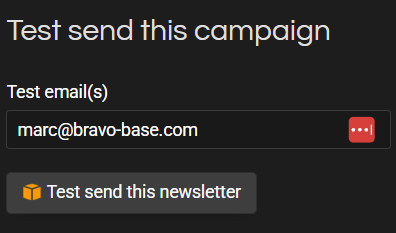
Send Test Email – Email yourself or your team a draft version to review layout, links, and content.
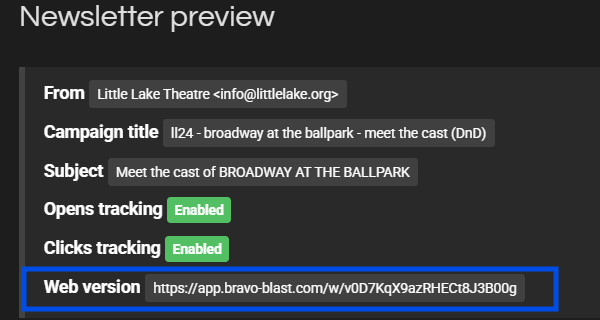
Web Version Link – Open your campaign in a browser tab to spot formatting or display issues.
Taking this step helps catch typos, broken links, or layout problems before your patrons receive the email.
Step 4: Send Your Campaign to a List
Once your campaign is ready, click Save and Next.
Select the appropriate list under Define recipients.
Click Send Newsletter Now to send immediately, or Schedule this campaign to send at a future time.
Want to improve your results? Learn more about → Best Practices for Successful Emails
Related Guides:
Introduction to BravoBlast
How to Login and Access BravoBlast How to Log in and Access BravoBlast
Managing Subscriber Lists
Understanding Reports
Best Practices for Successful Emails